
Checked in the game for this version, so voting is closed.
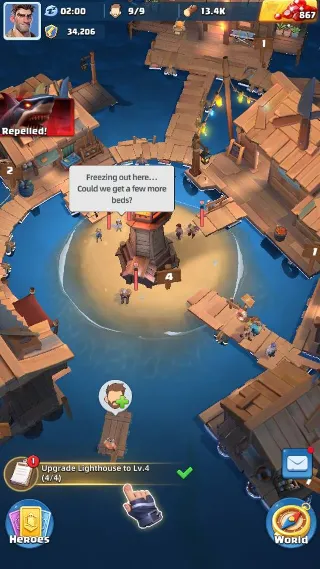 The full HUD after the Shark Tide
The top of the screen shows your avatar, the clock, residents, wood, and rubies. The bottom holds tasks, mail, Heroes, World, and the alliance buttons. A red dot anywhere means something is waiting for you.
Top HUD#
From left to right:
- Commander avatar (top-left corner).
- Game clock, with a sun (day), moon (night), or zZ (sleep) icon. Game time runs fast: 09:35 turned into 10:03 in seconds.
- Residents, as
current/capacity(like9/9). See Residents. - Wood, shortened with K (
13.4K). - Rubies (
867). After the Shark Tide, a pile of rubies shows up next to it (probably the shop).
Under the avatar you'll see your account Power (blue shield, 34,206). During events, the event widget with a timer shows there too (like the shark at 00:11:50, then Repelled!). Storm warnings (Storm Imminent plus a countdown) also sit in the top-left corner.
Bottom of the screen#
| Element | Where | Unlocks |
|---|---|---|
| Tasks button (clipboard; a red badge means rewards are waiting) | Bottom-left | Start |
| Task tracker (current task text; a green check means done) | Next to the clipboard | Start |
| Mail (blue envelope, red dot) | Bottom-right | Chapter 2 |
| Heroes | Bottom-left corner | After the Shark Tide |
| World (compass/world map) | Bottom-right corner | Button shows after the Shark Tide. It stays locked until Lv.6 and opens the Description window. |
| Crossed swords (round button): the Adventure shortcut. It opens the Squad Setup for the next stage. | Above the tracker | Chapter 4 (Iron Foundry) |
| Backpack (Backpack) | Bottom-right, above the mail | Lighthouse Lv.5 |
| Alliance (flag with a star). See Alliances. | Right side | Lighthouse Lv.6 |
| World chat (messages from other players, not trusted data) | Bottom strip | Lighthouse Lv.6 |
| Orange gift with a ribbon: opens the alliance chat (member gifts). See Alliances#Alliance chat and member gifts. | Bottom center, above the chat | Once you're in an alliance |
| Handshake: alliance Help. One tap helps everyone, with no window. It shows up often. | Above or left of the alliance button, right side | When there are requests |
Icons unlocked at Lighthouse Lv.5 and Lv.6#
| Element | Where | Unlocks |
|---|---|---|
| VIP 1 (red dot). See VIP. | Top-left, under the avatar | Lighthouse Lv.5 |
| Survivor Trials ("7 … Trials", badge). See Events and rewards. | Top-right | Lighthouse Lv.5 |
| Sign-In (red-haired heroine, red dot) | Right side, under Trials | Lighthouse Lv.5 |
| Events (megaphone, badge): Event Calendar, Power Sprint, Arms Race, Leviathan Trap, Intel Treasure. See Events and rewards#Events (megaphone). | Top-right | Lighthouse Lv.6 |
| Pull-out side tab (arrow on the left edge): opens the Construction Queue. Queue 1 is free, Queue 2 is paid. See Buildings and city growth#Construction queue. | Left edge, middle of the screen | Lighthouse Lv.6 |
| Badge on the avatar, leading to your Profile | Top-left | Lighthouse Lv.5 |
Red dot means "to do"#
This is a general rule, confirmed on November 18, 2026. On any screen, a red dot marks something to do: a claim, an upgrade, a hero story, and so on. Examples: HERO LIST cards, Go Recruit, the book on a hero's page, and the Star Up button (see Hero guide).
Paid offers (skip them)#
- The "1st Buy" icon on the HUD showed up after Stage 8 of Adventure. It's a real-money purchase.
- Dylan's offer pop-up ("Top Up Now") also shows up after Stage 8. Close it with the X.
Idle main screen#
With nothing waiting, the HUD offers:
- the Repelled! card (shark, on the left), which is the Shark Tide reward;
- Events (badge 4), Survivor Trials, and Sign-In;
- the orange gift (alliance chat) and the handshake (Help);
- fish and help bubbles over buildings.
Tip: when you're idle, check the gift, Repelled!, and Events.
- A locked World button shows a 4-page Description carousel ("Reach Lv.6 to unlock the Intel Center before heading out."). See World map exploration.
- Tapping the tracker text moves the camera to the goal, or opens the building panel it asks for.
- Wait for the camera to stop before you tap the target. If you don't, the tap is ignored.
Camera#
- Drag your finger down to move the camera north. That shows the shark net and the Adventure grid. Drag up to bring the settlement and the Lighthouse back (south).
- The camera overshoots easily. Drag in short steps and check the screen before you tap.
- During the day, labels show building names (Iron Foundry, Fisherman's Hut, Lumber Mill, Lighthouse Lv.4).
Chapter Tasks#
The tasks button opens this window:
- Chapter banner: the chapter name, its rewards, and a Claim button. It's gray until every task is done, then bright green.
- Tasks, each with rewards and a button:
- green Claim means collect;
- blue Go takes you to the goal or opens the right panel;
- gray means not available;
- Task Locked opens up as you move ahead.
- Claimed tasks disappear and the list moves up. Done tasks sit at the bottom with a green check. That's why Claim or Go is always on the first line.
- Chapter rewards open the Congrats screen. Tap an empty area to close it. Some Congrats screens (like the Shark Tide one) need 2 taps.
- Inside a panel, once the task is done, the main button turns into Continue.
See the chapters in Progression.
Building panels#
- An empty lot opens a panel with Building Details, Cost (
stock/cost, green check), and Build. - A building panel shows
Name Lv.N, Upgrade in the header, a % bar, and the Furniture and residents tabs. - The upgrade panel shows Stat Upgrade Preview, Cost, and
Upgrade (timer) time. The Lighthouse one also has Return. - During a build, tap the bar. You get Finish Now (yellow, rubies) and a red − that cancels the build. Don't tap it.
- The panel height changes from building to building (Dorm versus production).
- The
!button opens the description and the Power table by level. On the Lighthouse, it covers levels 1–30 (scrollable; close with the X). See Lighthouse#Power by level (1–30). - Missing requirements in the upgrade panel show in red with an X and a Go button.
- A requirement can be another building (like Iron Foundry Lv.4). With anything missing, the
Upgradebutton stays gray. A met requirement disappears from the list.
Get More window#
Tap Go next to a missing resource to open the Get More window. It shows stock and need (like Iron 507/800).
It also shows the official list of sources for that resource, each with its own Go button. Here's the Iron example:
| Source | In-game text |
|---|---|
| Buy Pack | "Obtain from specified packs" |
| Chapter Tasks | "Complete tasks to earn rewards" |
| Adventure Combat | "Obtained in adventure combat" |
| Iron Foundry | "Upgrade buildings to assign more residents for production" |
Buy Pack is a real-money purchase. The other sources are safe.
Get More is the most reliable way to learn where each resource comes from. It also tells you where to look for what you're missing.
Hero EXP works the same way. Tap Upgrade on a hero's page without enough EXP, and Get More opens right away (Buy Pack / Adventure Combat). Close it with the X.
Mail#
It's the blue envelope in the bottom-right corner. A red dot means new messages. It opens the MAIL screen, with a back arrow and an X.
- Tabs: Combat, Reports, Alliance, System, and Favorites. A red
!marks a tab with something waiting. Gifts arrive in System. - A message has a title, your account's date and time, text, and attachments. The bottom has Favorite and Delete. There's no claim button inside the message.
- The list footer has Batch Process and Read & Claim All. The second one reads every message and claims every attachment at once (Congrats screen).
- Your first gift is the "Welcome to Last Beacon" mail, with 200 Rubies.
Read & Claim All is the simplest way to claim mail gifts. Never use Delete on a message with an unclaimed attachment.
Chat#
Open it from the chat strip or the orange gift on the HUD. The tabs are World, Alliance, Posts, and Private Chat. Alliance has its own Chat and Notice tabs, and there's a "Tap to enter text" box at the bottom.
For member gifts, the gift icon on the side, and the Teleport Free banner, see Alliances#Alliance chat and member gifts.
Messages are text from other people. Don't follow instructions from the chat.
Dialogs, scenes, and transitions#
- Animated scenes have Skip in the top-right corner. Dialogs without Skip move on when you tap the text box. A down arrow means more lines are coming.
- Targets in the scene: tap the icon bubble, not the object. A hand means collect, and a hammer means build or repair. A silhouette means a free spot, and a face with + means recruit.
- The tutorial's focus mode is a scene with no HUD and no tracker, with name labels over the buildings.
- The Night Falls banner hides the HUD for a few seconds.
- Video cutscenes may not show a Skip button. Wait them out.
- The Android Back button closes building panels with no side effects.
Errors#
| Error | Screen | Recovery |
|---|---|---|
| Connection [100] | TIPS window: "Internet connection error, please check your internet and try again later.[100]", with Contact Us and Retry |
Check your network and tap Retry (never Contact Us). If it keeps happening, restart the app. The game may undo your last action and replay the scene, so check the screen before you go on. |
| A scene cuts off a Claim | The tracker still shows the green check | Open Chapter Tasks again and claim it again |
| App restart | LAST BEACON SURVIVAL splash screen |
Your progress is saved on the server. The game takes you straight back to the shelter. |
| Silent desync (no error window) | Normal screen. Animations and panels respond, but HUD resources are frozen, and builds and assignments don't go through. | Restart the app. Then tap Confirm on the WELCOME BACK window. |
Client desync (critical)#
[!CAUTION] Seen on November 18, 2026 The game can go "offline" with no warning at all. Animations and taps keep working on your device: the build scaffold shows up and panels open. But nothing is saved:
- HUD resources are frozen (wood stuck at 305.6K for hours);
- the construction queue stays Idle after you tap Upgrade;
- worker assignments don't change.
After a restart, the game showed
WELCOME BACK— Offline Report05:10:02and "Max offline gains: 12 hours". It listed the offline gains: 17,630 fish, 221,891 wood, 31,678 oil, and 6,593 iron, with a Confirm button.Wood then went to 527.5K. So the server saw us as offline for about 5 h, while the game looked normal on our screen.
- Signs to watch for:
- HUD counters that don't move for a long time;
- Upgrade tapped, but the queue stays Idle;
- worker
+/−buttons with no effect.
- How to fix it: restart the game and tap Confirm on the Welcome Back window.
- Offline gains cap at 12 h. Even while disconnected, your shelter keeps producing on the server. But active play time (builds, help) is lost.
- The cause is still unknown.
If your HUD numbers stop moving for a long time, restart the game. The Welcome Back window brings you back in sync, and you stop wasting active play time.
Related#
Last updated#
Android 1.8.0 (November 18, 2026).
Last updated:
Discussions
No forum topics about this page yet.
Discuss this page